How to set up an old tablet as a family calendar and chore board
Using an old tablet as a family calendar works well if it still charges, holds Wi-Fi and runs current apps. Put it where everyone passes in the morning, low enough for your youngest to reach and near a socket. Then keep the screen on by day, lock it to one app and keep it cool so the battery lasts.
Some families call it a family command center. Children just call it the board. Its job is to answer the morning questions: what do I do next, what's for dinner, is it swimming today?
Can you use an old tablet as a family calendar?
Usually, yes: a calendar and chore board asks far less of a tablet than games do. Check these before you buy a mount.
- Software. Find the version in Settings, under About, and check it meets the minimum on the app's store page.
- Touchscreen. Tap every corner and along every edge. Children tap everywhere.
- Charging port. The cable should sit firmly and charge without wiggling.
- Battery. Lay it on a flat table. If it rocks, the screen lifts at an edge or the back bulges, the battery may be swelling. Don't use it.
- Heat. Charge it with the screen on for an hour. Warm is fine; too hot to hold is not.
- Wi-Fi. Test the signal where the tablet will live before you drill.
A tablet that no longer gets system updates can still do this job if it only runs the board app, never browsing, email or banking. If it has its own app store rather than the App Store or Google Play, check that your app is there first. Then back up anything you want and factory reset it, so it starts clean.
Where to put it and how to mount it
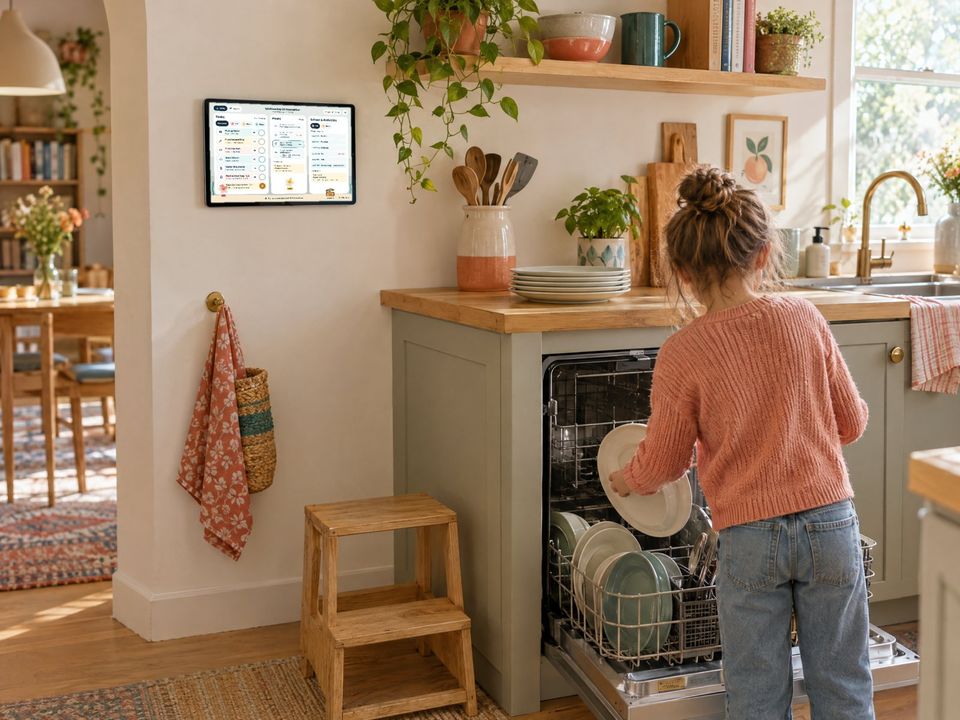
Choose the spot the family passes on the way to breakfast and out of the door, usually the kitchen or the hallway by the shoes and bags.
Height
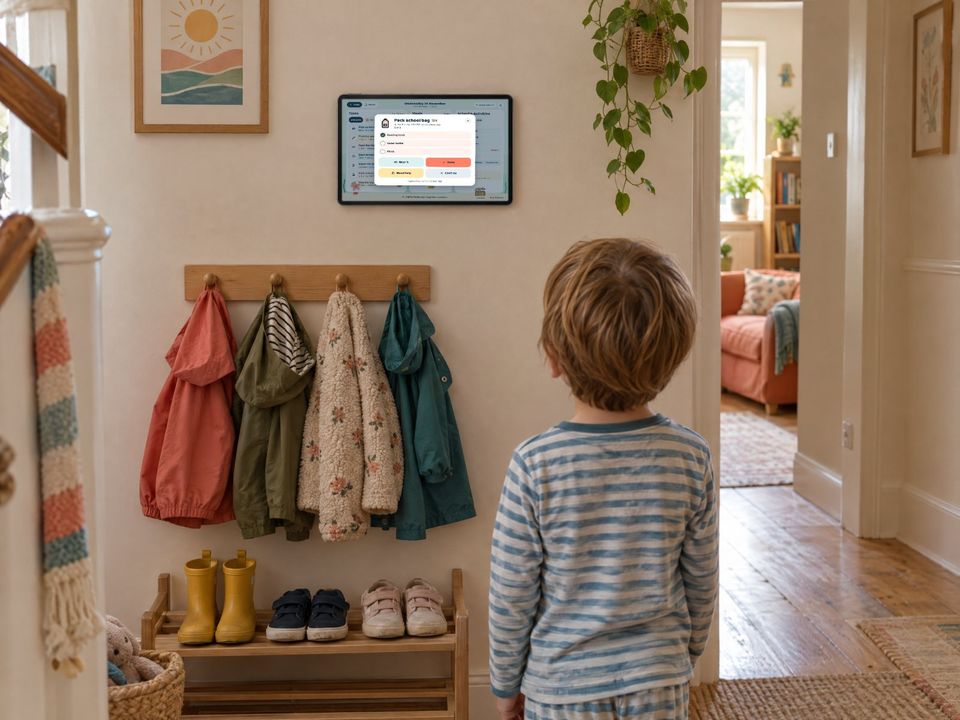
Mount it for the children, not for you. Stand your youngest against the wall and mark where they can tap comfortably without stretching. That mark is the top of the screen. Adults can glance down; small children can't reach up.
Light and heat
Avoid the wall opposite a window, where glare washes out the screen, and spots in direct sun. Keep it away from the hob, kettle, sink and radiators: steam is hard on tablets, and heat speeds up battery wear.
Near a socket
Pick a wall close to a socket, so the cable never crosses a doorway or hangs where a child can pull it. Surface cable trunking painted to match the wall hides the cable. Don't push an ordinary charging cable inside a wall; for a fully hidden cable, ask an electrician.
Wall, stand or fridge
| Mount | Good for | Watch out for |
|---|---|---|
| Screwed wall bracket | A permanent spot. Nobody carries it off. | Drilling, the right wall fixings, and planning the cable first. |
| Adhesive wall mount | Renters and lighter tablets. | Weight rating and wall surface. Removal can lift paint. |
| Stand or kickstand case | Trying it out with no drilling. | It gets moved, splashed and carried off. |
| Magnetic fridge mount | Kitchens with no free wall. | Many stainless steel doors aren't magnetic: test with a magnet. Door swings jolt it. |
Not sure? Try a stand for a week, see where people stop and look, then mount it there.
The settings that make it a wall tablet
On by day
- iPad: Settings, Display & Brightness, Auto-Lock, then Never. Guided Access has its own Display Auto-Lock setting, so set that too.
- Android: Settings, Display, Screen timeout, then the longest option. Many tablets also offer Stay awake, which keeps the screen on while charging, in Developer options (tap Build number seven times under About tablet to show them). Change nothing else there.
If your board app can keep the screen on during set hours, use that instead, so it still sleeps at night.
Dim at night
Turn on auto-brightness so the screen dims with the room. Night Shift and Dark Mode on an iPad, or a night light setting on Android, soften it in the evening. Sleeping overnight saves power and, on OLED screens, lowers the risk of an image burning in.
Locked to one app
Without a lock, little fingers find the games fast. The built-in locks below are enough, so skip lock apps that want wide control over the tablet.
iPad: Guided Access. In Settings, Accessibility, Guided Access, turn it on and set a passcode. Open the board app, triple-click the top button (or the Home button) and tap Start. Triple-click and enter the passcode to leave.
Android: screen pinning. In Settings, search for "pinning" (often under Security) and turn it on, with the option to ask for a PIN before unpinning. Open the board app, open recent apps, tap the app's icon on its card and choose Pin. To unpin, swipe up and hold, or hold Back and Overview, then enter the PIN.
Choose a passcode the children haven't watched you type.
What belongs on it, and what doesn't
A digital family calendar for adults can hold everything. One for children should hold today, plus enough of the month to count down to something.
- Each child's tasks for today, in order, with pictures for children who can't read yet (see our visual schedule for kids guide).
- A few chores that fit each child's age.
- The next meal, so "what's for dinner?" answers itself. Here is how to plan a week of family dinners in 20 minutes.
- School and activities: PE day, swimming, what to bring and who is collecting.
- The month ahead: a trip, a birthday, the last day of term.
With Kai (7) and Nora (5), Kai's morning reads: get dressed, breakfast, teeth, pack school bag. Nora's list is shorter, with a picture on every item. Both see that dinner is pasta and Thursday is swimming.
Keep off it: adult work calendars, anything private about a child (health appointments, school reports), messages and notifications, and door codes or the Wi-Fi password. If a visiting friend shouldn't read it, it doesn't go on the wall.
Privacy on a shared screen
Everyone who comes into your home can see and touch a wall board. Set it up as a household device, not as your own tablet on a wall.
- Keep personal accounts off it. You need an account for the App Store or Google Play. If it's yours, turn off syncing for photos, messages, email and passwords on this tablet.
- Block purchases. On an iPad, use Screen Time, then Content & Privacy Restrictions. On Android, set Google Play to require authentication for all purchases.
- Silence other apps. Delete what the board doesn't need and turn off notifications for the rest.
- Check permissions. Switch off camera, microphone and location access for any app that doesn't need it.
Then ask what the board app does with your family's information. Do children need accounts? Are there ads? Can anything be bought from the board?
Battery health when it's always plugged in
Lithium-ion batteries wear faster when they sit at full charge and when they're warm. A tablet on a wall charger does both unless you help it.
- Turn on battery protection if there is one. Many newer tablets can stop charging at around 80 or 85 per cent; look under Battery in Settings.
- Keep it cool. Out of the sun, away from heat, back open to the air. If it gets hot while charging, take off a thick case.
- Use a decent charger, the original or a certified one, and replace any cable that's frayed or gets hot.
- Consider a plug timer, so the tablet spends a few hours a day on battery rather than at full charge.
- Check for swelling every few months: a lifting screen, a gap along the frame or a bulging back.
If the battery is swelling, unplug the tablet and stop using it. Don't press on it or open it, and keep it away from anything flammable. Take it to a repair shop or a battery recycling point, never the household bin. A tired battery is fine for this job; a swollen one is not.
A board your children can use on their own
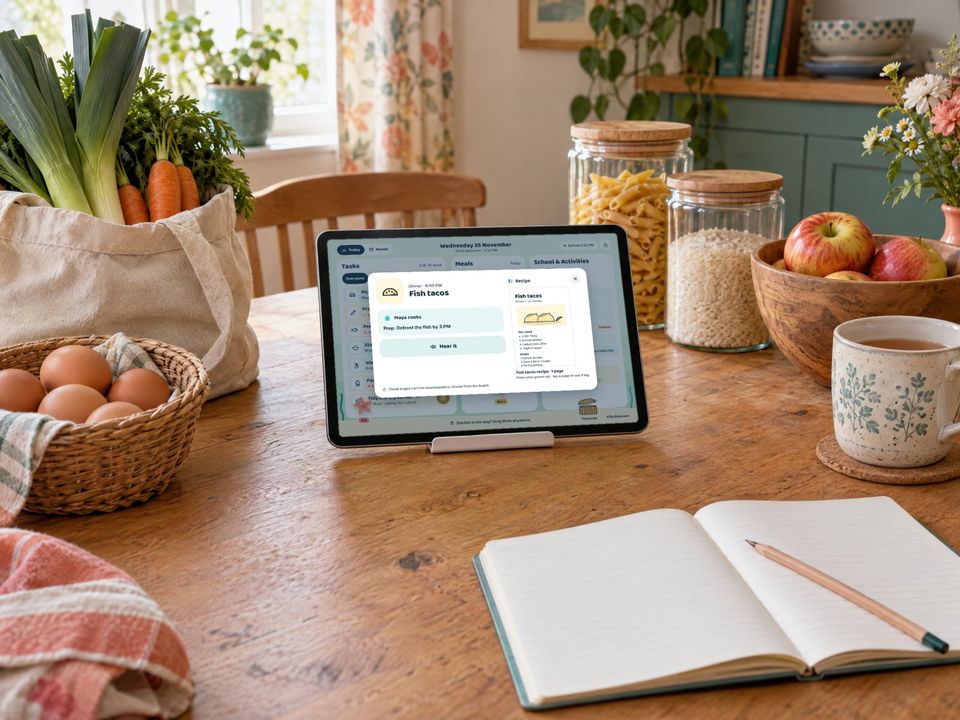
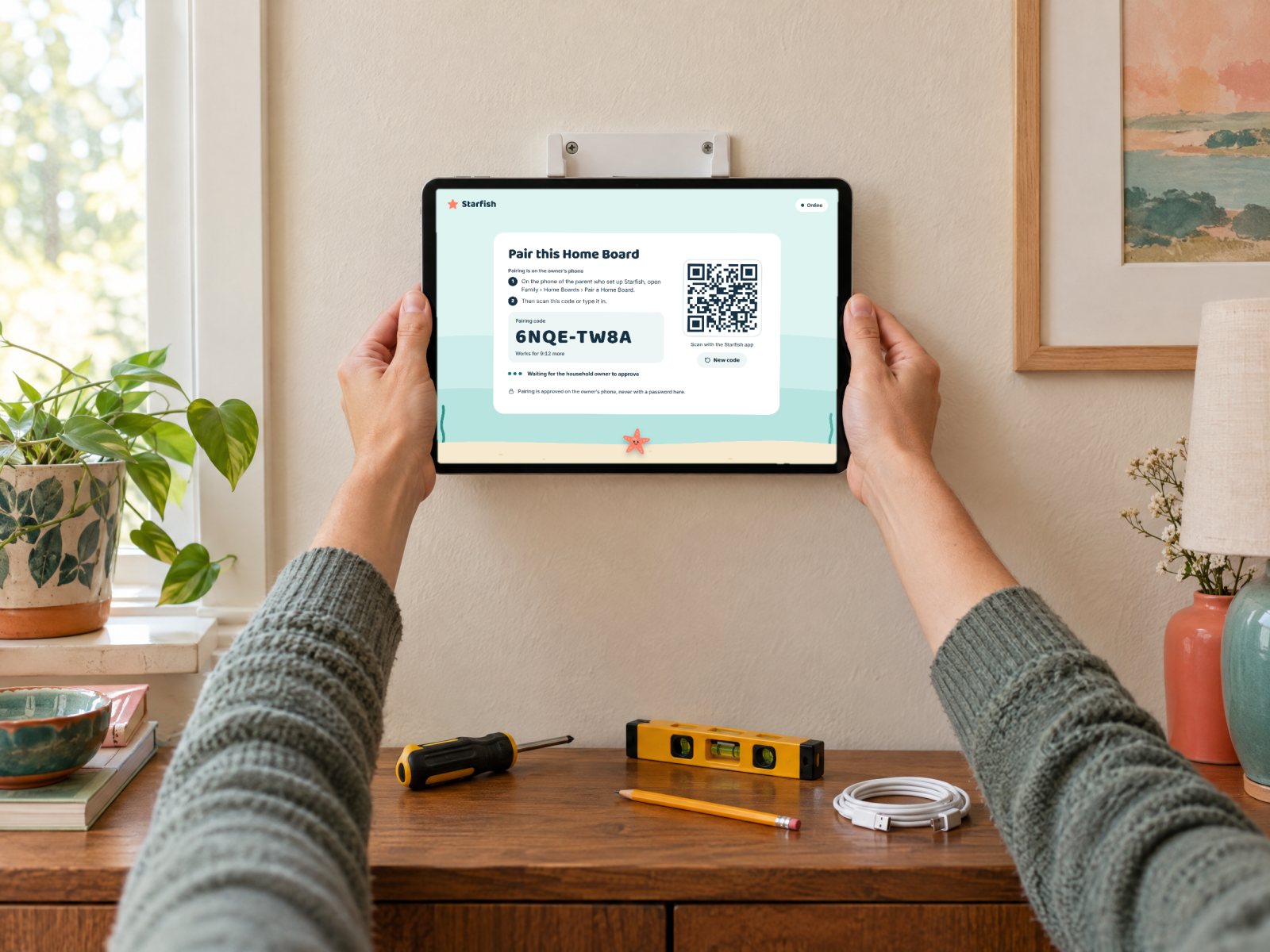
Starfish turns your old tablet into a wall board with three areas: Tasks, Meals, and School & Activities. Parents plan from their own phones; each child picks their name and sees their own list, next task on top. It runs on an iPad with iPadOS 16.4 or later or an Android tablet with Android 7 or later. You pair the tablet once with a code from your phone and name it, say Kitchen. It signs in as its own device, never as a grown-up, and you can switch it off from your phone. A PIN protects its settings. Android tablets can pin Starfish to the screen; iPads use Guided Access. The screen can stay on during set hours, and quiet hours turn the sea dark and silent at night. No ads, no child accounts, nothing for children to buy.
Questions parents ask
What size tablet is best for a family wall calendar?
A 10-inch screen or larger is easiest to read across a room. An 8-inch tablet works on a counter or in a hallway, where people stand close. Condition matters more than size: a firm charging port, a battery that isn't swollen and Wi-Fi that holds where it will live.
Is it safe to leave a tablet plugged in all the time?
Generally, yes, if it stays cool, uses a good charger and the battery isn't swollen. Full charge ages a battery faster, so turn on any battery protection setting and keep it away from heat. Every few months, check for a lifting screen or bulging back, and stop using it if you see either.
How do I stop my kids leaving the calendar app?
Lock the tablet to that app. On an iPad, turn on Guided Access under Settings, Accessibility, open the app, triple-click the top or Home button and tap Start. On Android, turn on app pinning, usually under Security, and pin the app from recent apps. Use a passcode the children haven't seen you type.
What should a digital family calendar for kids show?
Today first: each child's tasks with pictures, the next meal, and school or activities with what to bring. Add the month ahead for trips and birthdays. Leave adult appointments, private notes, messages and door codes off it. If a visiting friend shouldn't read it, it doesn't belong on the wall.
Got a spare tablet in a drawer? Try Starfish free on it.